
Android APK
Verify first
Install only if the official Pinco website presents a download, version and update date. No public APK version was independently verifiable for this review.


Mobile access guide
Pinco Casino mobile access explained: Android APK, iPhone web app, browser access, updates and protection from unsafe mirror downloads.
Review date: 4 September 2026. Availability can depend on device, jurisdiction and the current Pinco interface. Never install a file merely because it uses the Pinco name or logo.
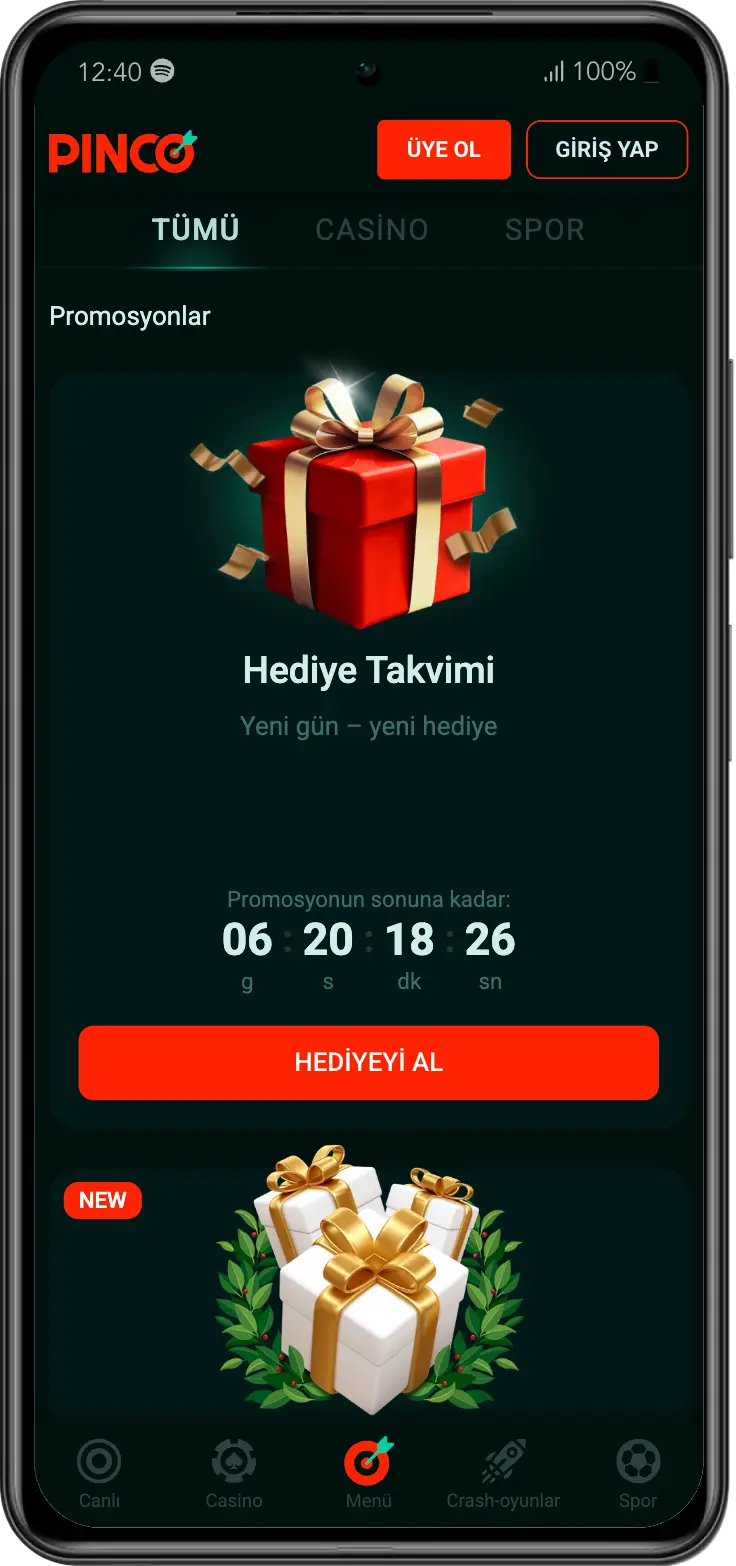
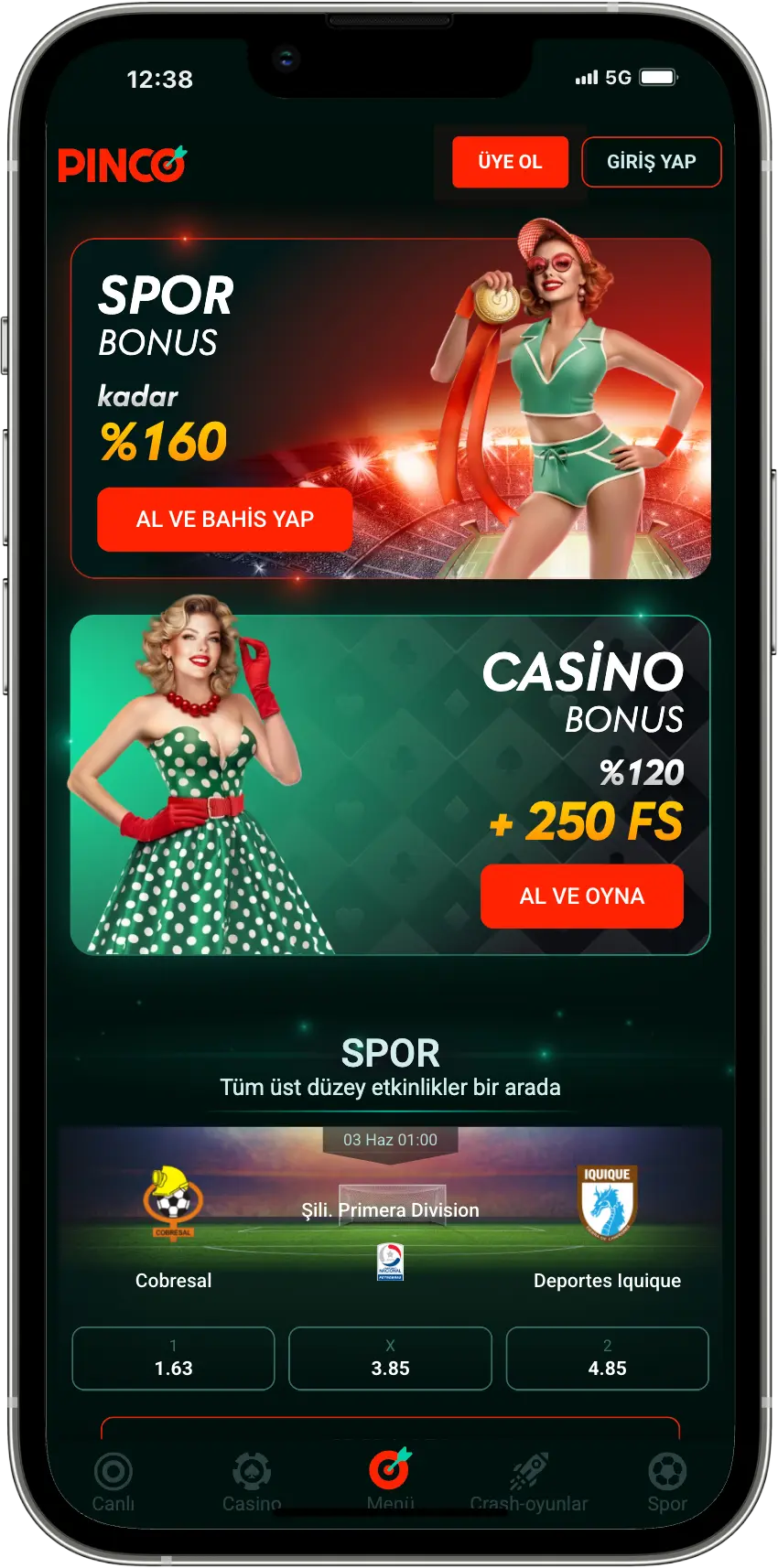
Availability check
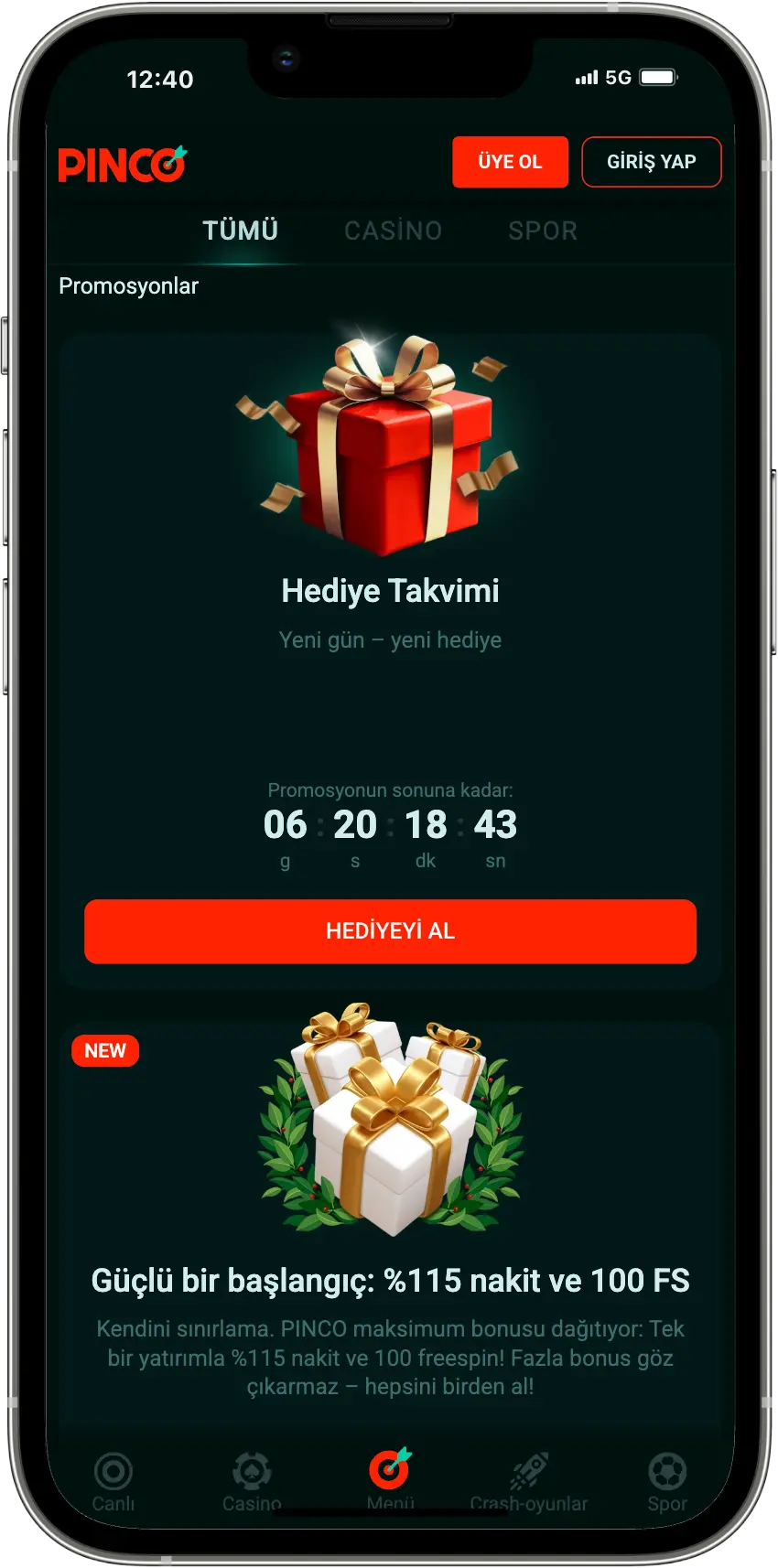
Mobile web is the dependable no-install route. Treat APK and PWA labels as conditional until the current official Pinco interface offers the relevant action on your device.
Verify first
Install only if the official Pinco website presents a download, version and update date. No public APK version was independently verifiable for this review.
Conditional
No separate official App Store listing was verified. Safari supports Add to Home Screen and Open as Web App; Pinco-specific PWA features can vary.
Available
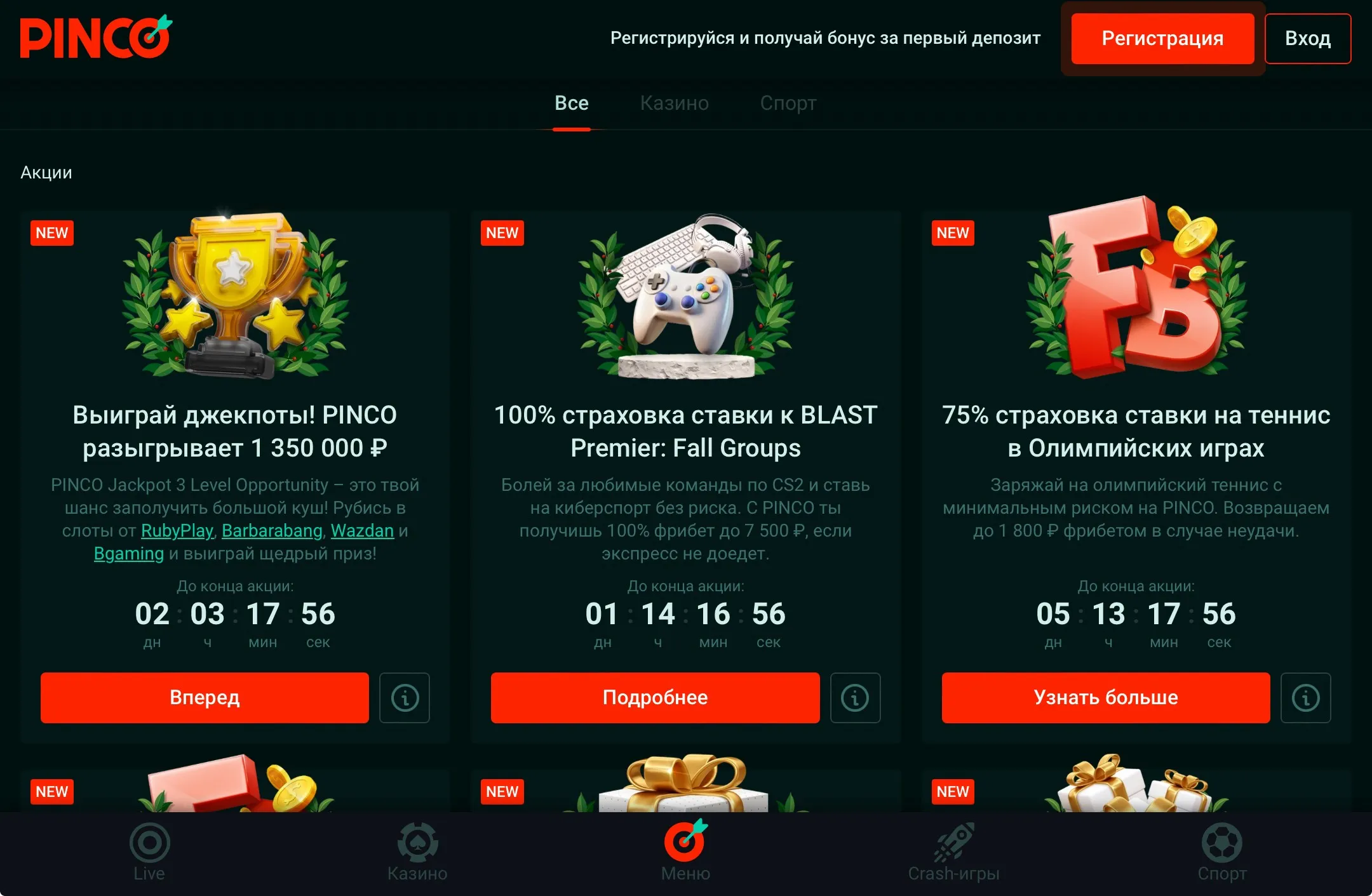
Use Pinco in a compatible browser without installing a package. This route receives interface updates from the website.
| Option | Installation | Updates | Best for |
|---|---|---|---|
| Android APK | Downloaded package, only from an official verified page | Manual download or official in-app prompt | Users shown an authenticated Android download |
| iOS web app | Safari → Share/More → Add to Home Screen → Open as Web App | Current web content loads from the server | Home Screen access without an App Store package |
| Mobile website | None; open the site in a browser | Automatic after refresh; cache may need clearing | Fastest and simplest access |
“PWA” describes web-app behavior, not proof of a native iOS application. If Safari does not show or retain the expected web-app experience, continue through the mobile website.
Android walkthrough
Proceed only when the file is offered through the official Pinco flow and the displayed version is newer than the one already installed.
1
Start from the known site, inspect the final download address and confirm that version/date information is present. Reject chat attachments and mirror links.
2
If Android blocks the package, allow installs only for the browser or file manager used for this verified download. Do not disable Play Protect.
3
Complete installation, open the app and disable “install unknown apps” for that source. Uninstall immediately if branding, permissions or login behavior looks wrong.
Android menus differ by manufacturer. A package signed differently from the installed app may fail to update; do not remove the old app until account access and the new source are verified.
iPhone walkthrough
Apple’s current Safari flow turns a website into a web app. It is a Home Screen shortcut/web app—not proof of a native App Store release.
1
Visit the verified Pinco website in Safari. According to Apple, use the More button and Share, or the Share button when shown by your tab layout.
2
Scroll through the Share options and tap Add to Home Screen. If it is missing, Apple advises opening Edit Actions and adding it.
3
Turn on Open as Web App when offered, then tap Add. Launch the icon and verify the domain again before entering credentials.
Safari and iOS decide which Home Screen options appear. Notification support and standalone behavior can depend on the site’s current PWA configuration.
No-install walkthrough
The browser version is the simplest fallback when no authenticated APK or PWA prompt is available.
1
Type the known address or use a trusted bookmark. Avoid search ads and unsolicited links that imitate the brand.
2
Confirm the address once more, use a unique password and complete the site’s authentication or verification request.

3
Save the verified page rather than finding a new link for every session. Sign out on shared devices and keep the browser updated.
Version & updates
Do not publish a guessed APK number. A version label is trustworthy only when it can be matched to the current official download interface.
Reviewed 04 Sep 2026
APK version: not publicly verifiable—check the official download card.
iOS package: no official App Store version verified; Safari web-app route described.
Mobile web: server-delivered; no manual package version.
Never update from a pop-up, messenger attachment or mirror page.
For APK, confirm the new official build is newer. PWA/web content normally updates from the server.
Know your login and recovery method before changing or removing an installed package.
After an update, verify the domain, permissions and login flow. Remove only site-specific cache when troubleshooting.
If a future official Pinco download page displays a package version and release date, replace the “not publicly verifiable” label only after checking that source.
Troubleshooting
Start with the least destructive action. Do not uninstall, clear all browser data or reset a device before confirming account recovery access.
If Android flags the package as harmful or its permissions look unrelated to gaming, do not proceed.
Return to the official download card and compare version/date. Clear only the old installer file and download again. A signature or package mismatch can block installation over the existing app; contact official support before uninstalling, especially if recovery details are uncertain.
Close all Pinco tabs, confirm cookies are allowed, restart the browser/app, and check the device clock. Update Chrome, Android System WebView or iOS/Safari where applicable. Avoid switching VPN locations. If the loop follows a KYC or security notice, contact official support rather than creating another account.
Refresh once, close and reopen the session, then clear site-specific cache/data if necessary. On iPhone, a stale Home Screen icon can be removed and added again from the verified Safari page. Do not clear passwords or all browsing data unless you have confirmed recovery access.
Availability can depend on jurisdiction, licensing controls, provider restrictions and maintenance. Do not use a mirror or VPN to bypass a geographic block. Confirm local eligibility and ask official support whether service is permitted in your location.
Verify notification permission, Focus/Do Not Disturb settings and whether the current site supports web notifications. For iOS, add the site through Safari and enable Open as Web App when available. Some PWA features depend on the current website configuration.
Download security
An app icon and familiar colours prove nothing. Trust the path to the file, the final domain, the displayed version and your device’s security warnings.
Mobile FAQ
Use an APK only if the current official Pinco interface provides the file, version and date. A public APK build number could not be independently verified for this page.
No separate official App Store listing was verified. Use the mobile website or Safari’s Add to Home Screen flow when available; never install an unrelated app with a similar name.
Do not assume offline gambling or account access. A web app normally requires a live connection for authentication, balances, games and transactions; limited cached interface elements can vary.
Use the same legitimate Pinco account rather than creating a new one. The published KYC policy requires players to operate a single account.
Installation method does not guarantee a promotion or payment option. Offers, methods and limits remain subject to account, location and current terms.
No. Keep Play Protect enabled. If a package triggers a security warning, stop and verify the source instead of suppressing the protection.
Use the verified route
Open the current site, confirm availability for your device and never install a package from an unverified mirror.
18+ | Play responsibly. This guide is informational and does not override current platform instructions, eligibility rules or Terms & Conditions. Interface screenshots are published captures from the cited independent review pages and may differ from the current product.
Reviewed 4 September 2026. References: Pinco website, licence information, Apple Safari web-app instructions, and Google Play Protect guidance.